How to cancel Spotify Premium Subscription? Find the cancel button does not have to be a headache. Cancelmysubs is the most comprehensive guide on cancelling your Spotify subscription.
Step 1: Go to Your Spotify Account Page
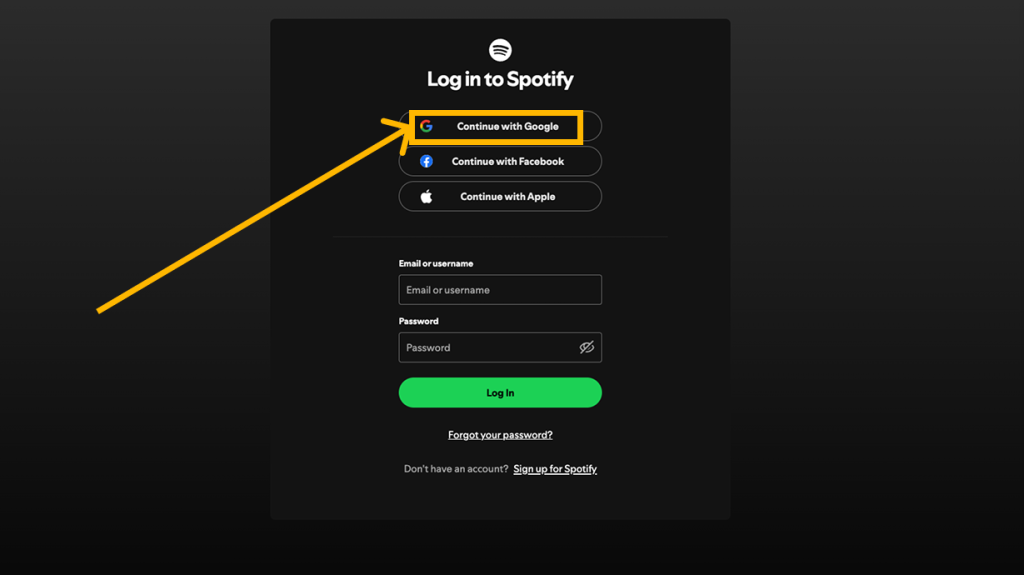
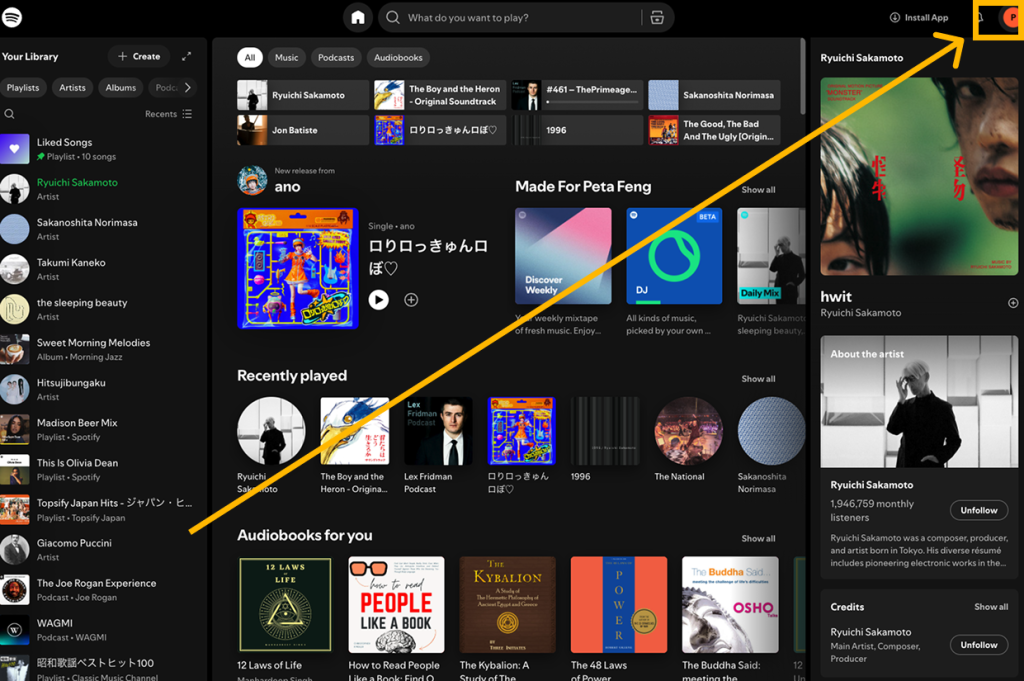
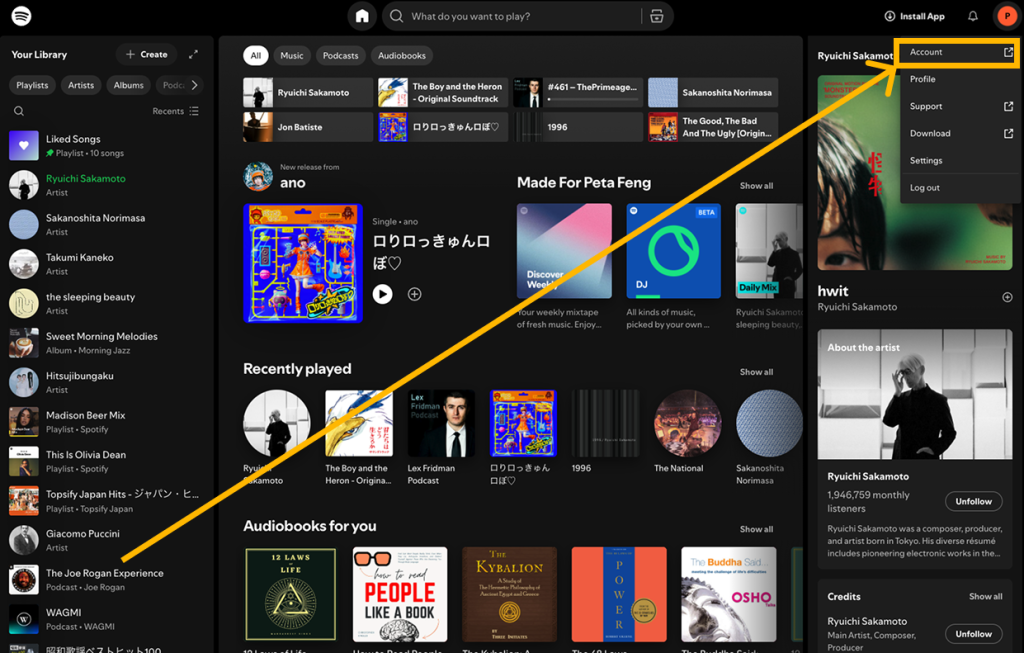
Visit https://www.spotify.com/account and log in with the account tied to your Premium plan.
Step 2: Navigate to “Your Plan”
On the left-hand side menu, click “Account Overview” then scroll down to “Your Plan.”
Step 3: Click “Change Plan”
Under your current subscription, select “Change Plan.” Scroll to the Spotify Free section.
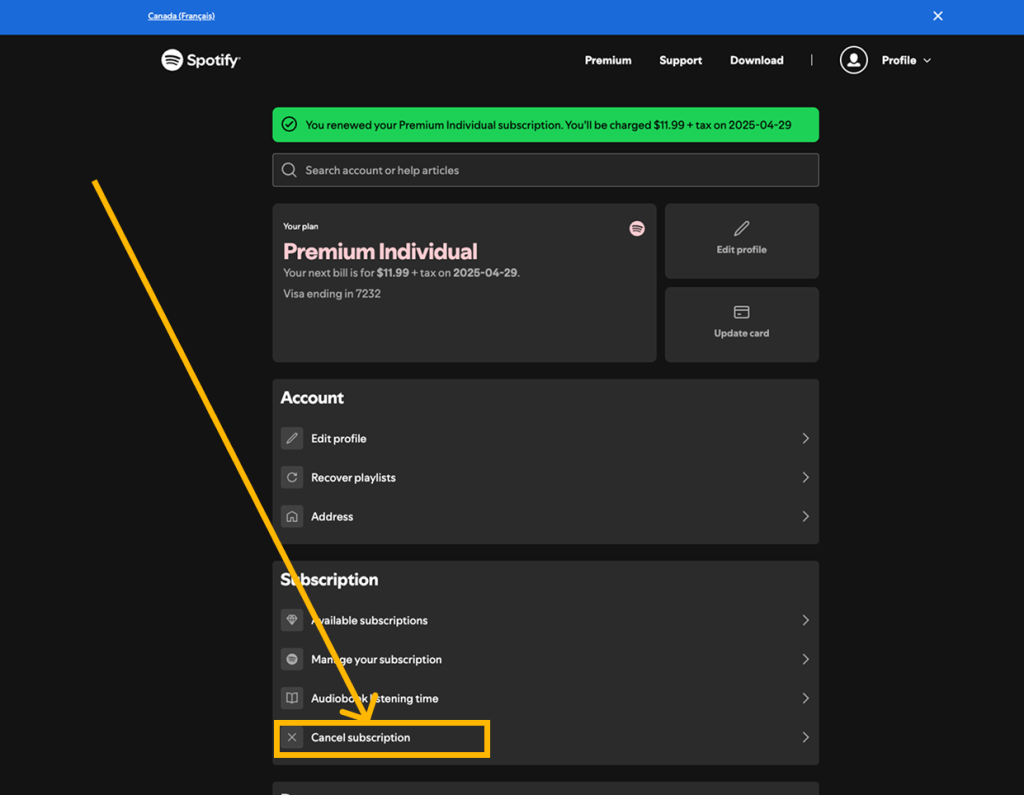
Step 4: Select “Cancel Premium”
Click “Cancel Premium” and confirm your cancellation on the following screens. Spotify may try to keep you with a discount offer—feel free to accept or continue.
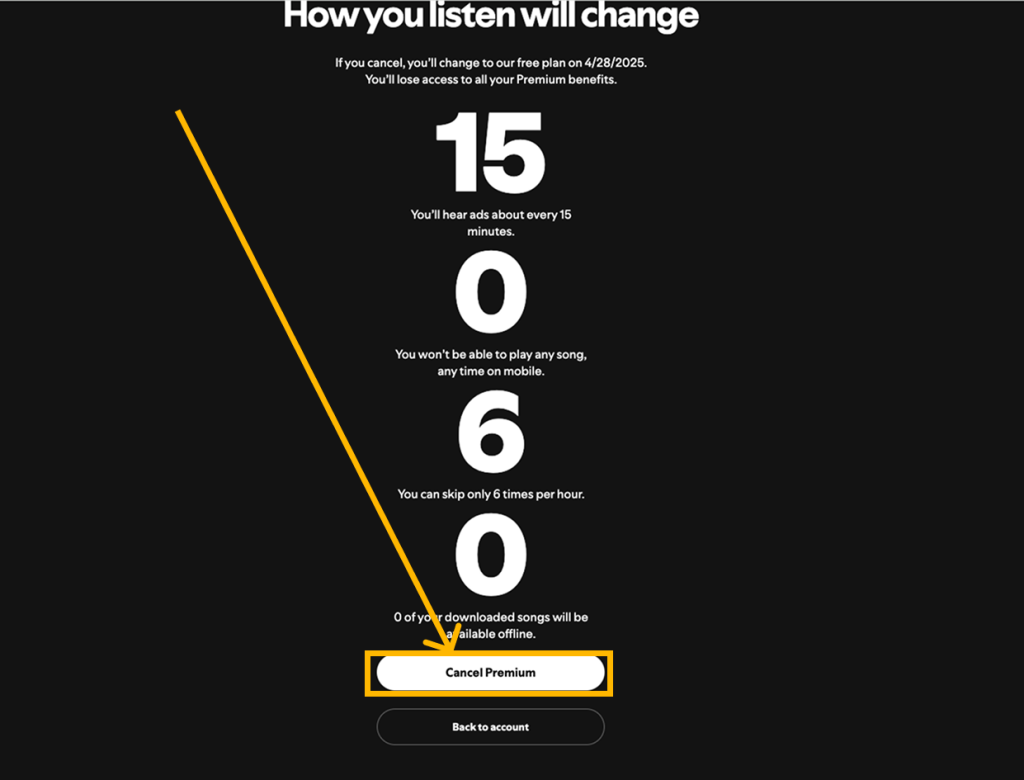
Step 5: Confirm Cancellation
Once you’ve gone through the steps, you’ll see a confirmation message and get an email notification.
What Happens After You Cancel
- Your Premium features will remain active until your next billing date
- After that, your account automatically reverts to Spotify Free
- You’ll still have access to your saved playlists and liked songs
- You’ll start hearing ads, and won’t be able to download music for offline listening
What Happens After You Cancel Spotify Premium?
Upon canceling your Premium subscription:
- Access to Downloads: You will lose access to any music you’ve downloaded for offline listening.
- Advertisements: Your account will revert to the free version, which includes ads between songs.
- Streaming Quality: Streaming quality may be reduced compared to Premium.
Will I Lose My Saved Playlists and Liked Songs?
No, canceling your Premium subscription does not delete your playlists or liked songs. Your music library remains intact, and you can continue to stream your saved content online.
Additional information from Spotify
🔗 Recover Playlists & Content
Can I Retrieve My Collection After Canceling?
Yes, your music collection is preserved after cancellation. However, if you notice missing playlists or songs, ensure you’re logged into the correct account. Sometimes, users have multiple accounts and may inadvertently access a different one.
🔗 Spotify Account Help – Recover Playlists & Content
How to Avoid Being Charged Again
- Set Reminders: Mark your calendar a few days before your next billing cycle to reassess your subscription needs.
- Use Subscription Management Tools: Services like CancelMySub.app can help you track and manage your subscriptions, ensuring you don’t miss cancellation deadlines.
Alternatives to Spotify
| Platform | Strengths | Weaknesses | Learn More |
|---|---|---|---|
| Apple Music | – Seamless integration with iPhone, iPad, Mac – Lossless and spatial audio – Large library (100M+ songs) | – Clunky desktop experience – No free tier | Apple Music Features |
| YouTube Music | – Great for music videos – Excellent recommendations via YouTube history – Smart downloads | – UI less refined – Lower audio quality than Tidal or Apple | YouTube Music Help |
| Amazon Music Unlimited | – Discounted for Prime members – Expanding HD & Ultra HD catalog – Hands-free Alexa integration | – Less curated playlists – Clunky interface on non-Amazon devices | Amazon Music Features |
| Tidal | – Audiophile-grade FLAC sound – Artist-first royalty model – Editorial playlists for niche genres | – Higher cost – Smaller catalog than Spotify/Apple | Tidal Subscription Info |
| Spotify | – Industry-leading playlists & discovery – Best-in-class social sharing – Huge podcast catalog | – Lower royalty payout to artists – Free tier includes ads | Spotify Plan Comparison |
Final Thoughts
Canceling your Spotify Premium subscription doesn’t mean losing your music collection. While you’ll forfeit offline listening and ad-free playback, your playlists and liked songs remain accessible. Utilize tools like CancelMySub.app to manage your subscriptions effectively and avoid unexpected charges.